Meeting Creation
Create the meeting using either the builder menu or the button in the Meetings Page
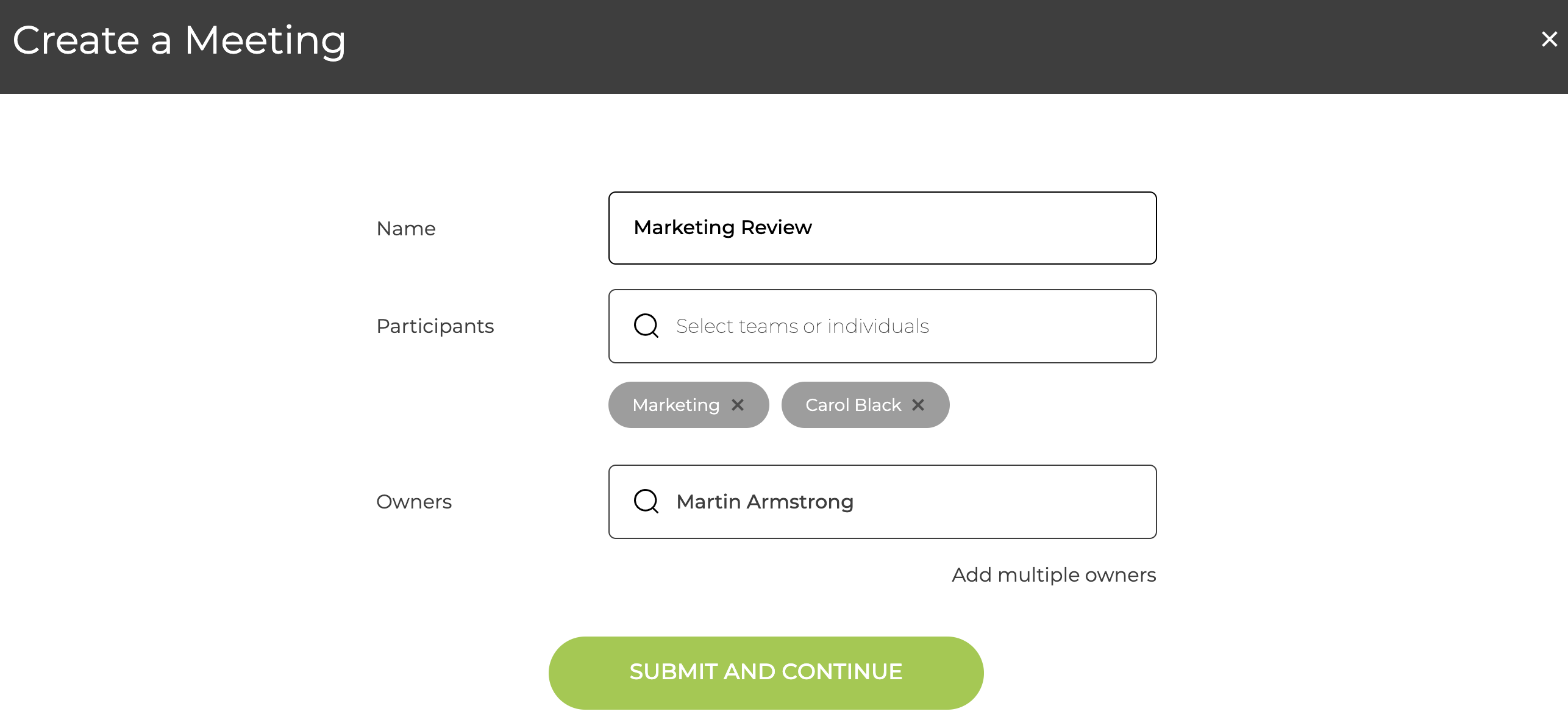
The basic meeting setup has the following fields
- Name of the Meeting
- Participants
- The teams or individuals who are expected to attend the meeting
- Owners
- The users who can setup and manage the meeting
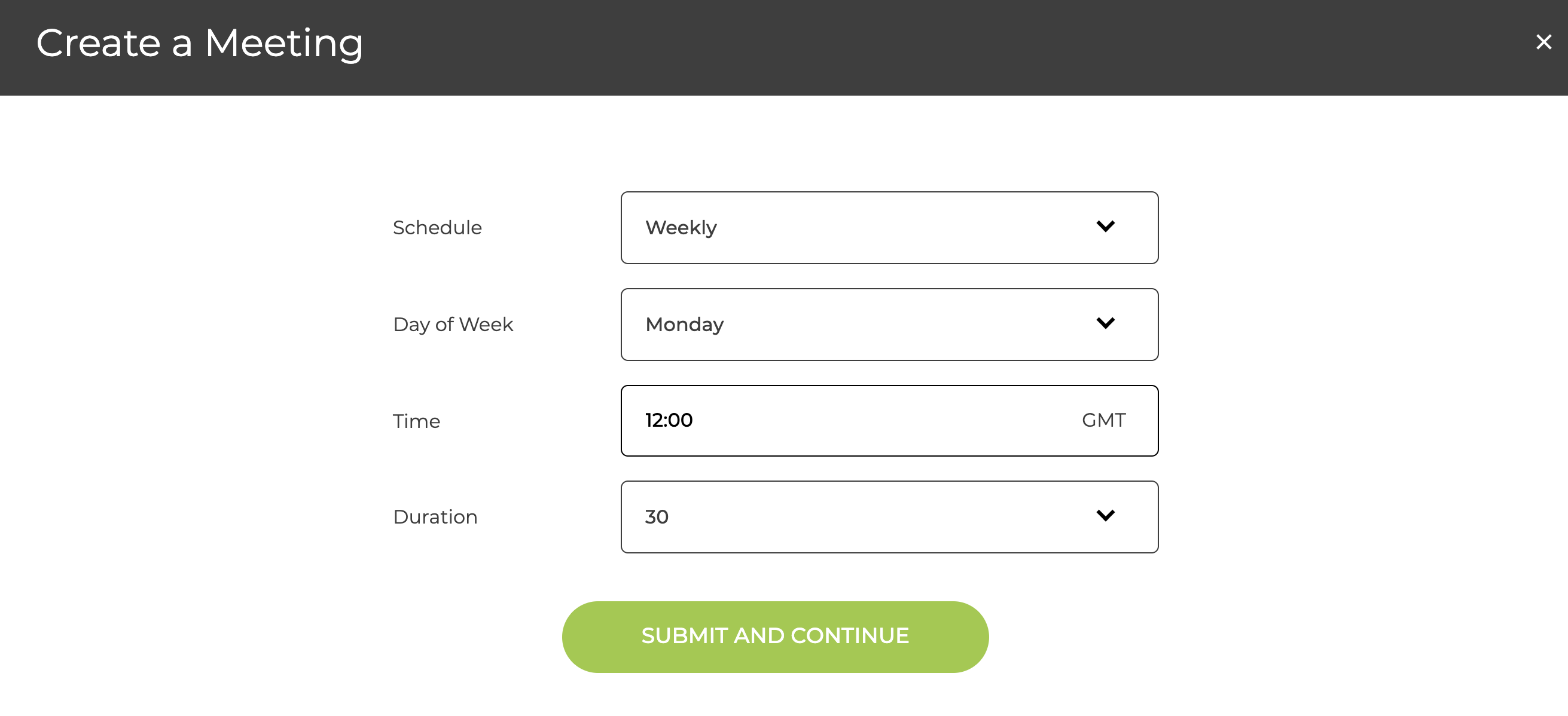
- Schedule
- There are various schedules to choose from and more details are available in What meeting schedules are available?
- Time & Duration of the meeting
- If you need to change the timezone, see What is the Organisation timezone?
When you save you will then be able to setup the meeting
Meeting Configuration
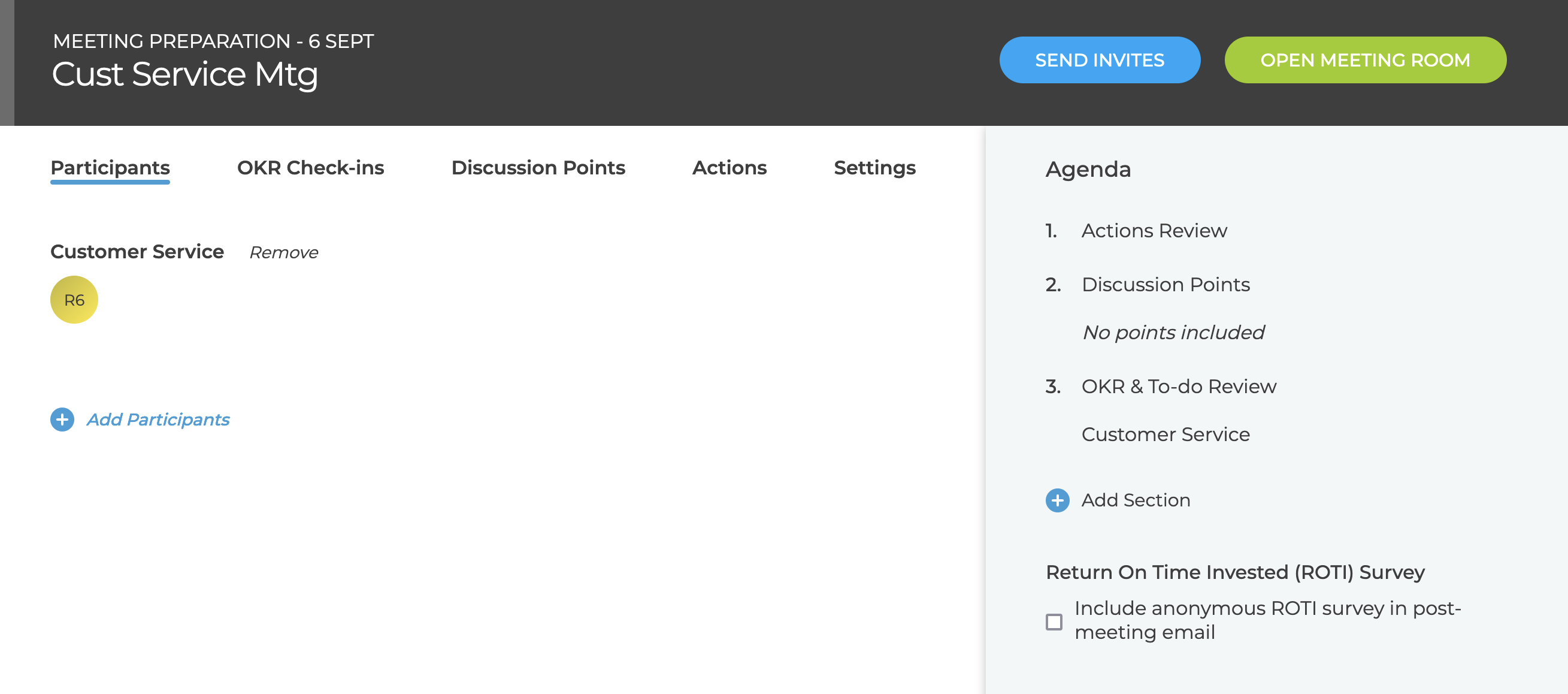
Participants
You can see the expected participants and invite additional people to the meeting
Actions
Once you have run some meetings and assigned actions, the outstanding actions are listed here
Settings
You can change the settings for the next meeting, the repeating meeting, add new Owners and change the email settings. More details in What are the different meeting settings?
Agenda
You can add sections to your meeting - there are different type of sections described in What Meeting sections are available?
You can also enable the ROTI survey to be sent in the post-meeting email - What is the ROTI survey?
Send Invites
You can send calendar invites to all participants - the button will be enabled if there are outstanding changes or new participants that require invites to be sent.
When you are ready to start the meeting - click Open Meeting Room
Running a Meeting
The person who starts the meeting is the presenter but this role can be swapped to others
Meeting navigation is done by the presenter using the links in the top right and the presenter also has access to the settings pullout by clicking the icon in the top right.
Other participants who join the meeting in ZOKRI see the view controlled by the presenter
For more details on meeting roles their functionality see What are the different roles in a Meeting?
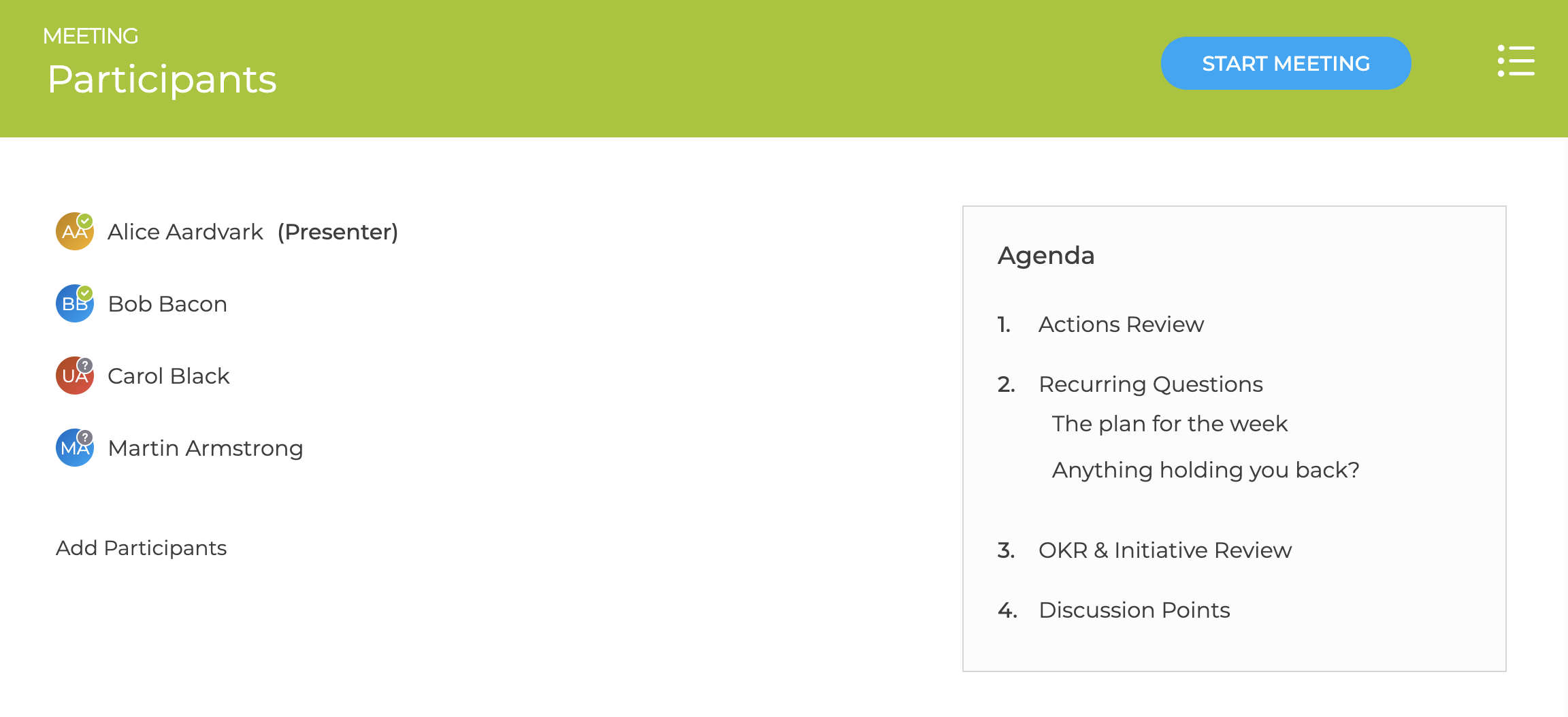
On starting a meeting the first page shows the expected participants and the agenda. You can mark the participants as present or absent by clicking their avatar. You can also add additional participants who have joined the meeting.
You then run through the meeting adding actions and notes as needed - there are quite a few different section types described in What Meeting sections are available?
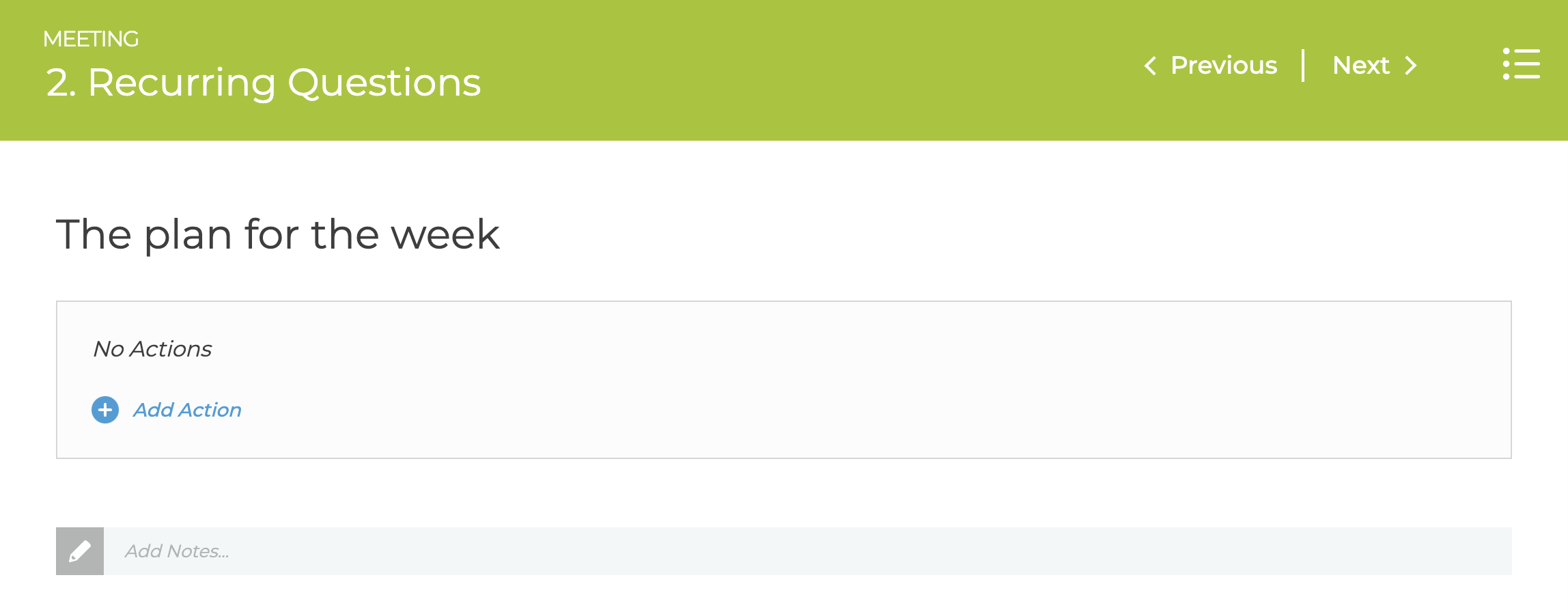
This is a recurring question section
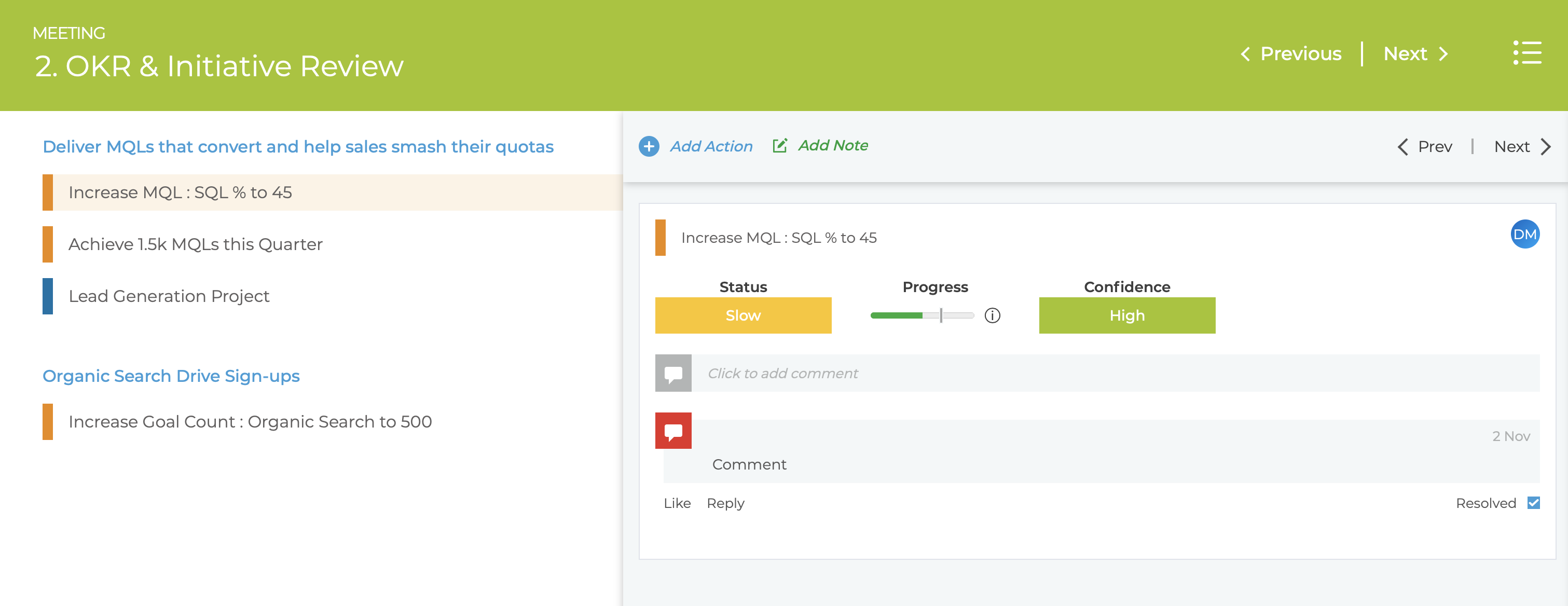
This is the OKR & To-do Review section
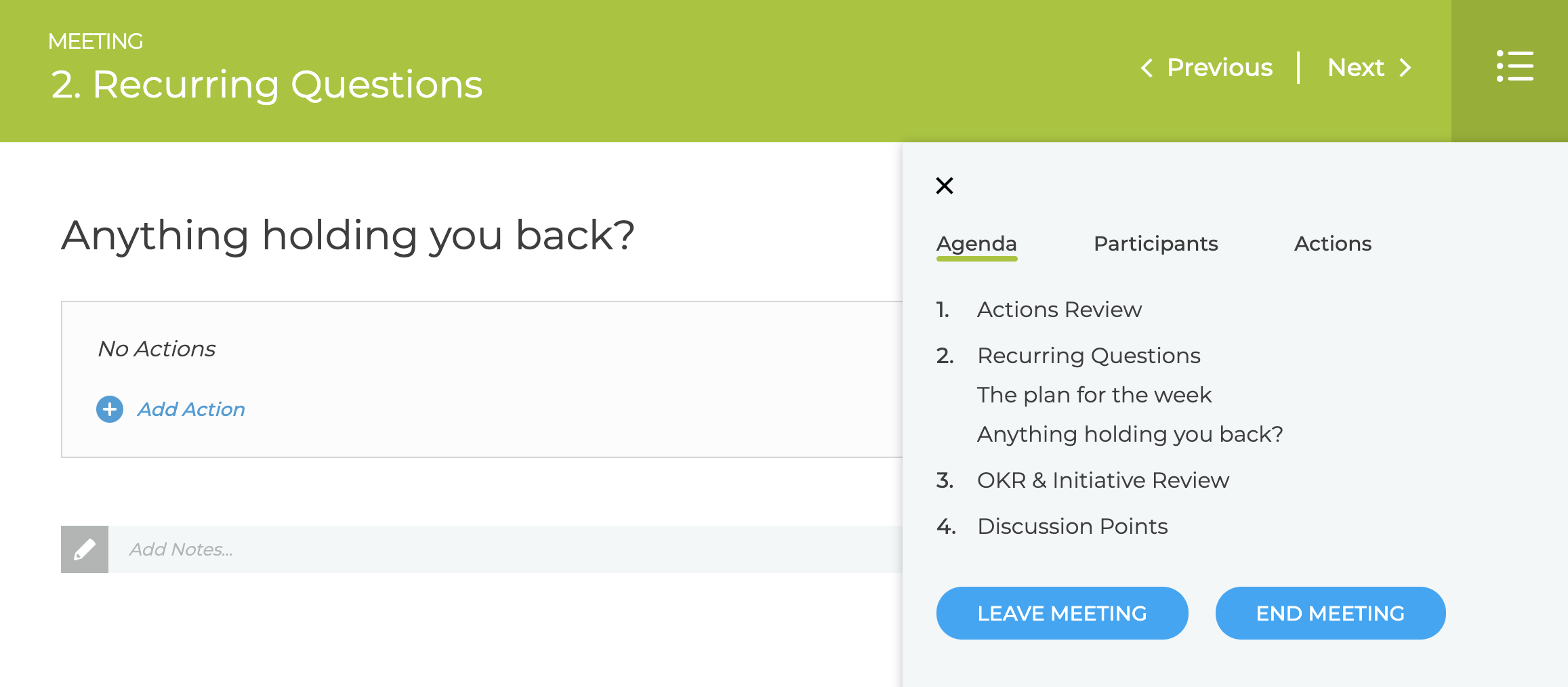
The settings pullout provide quick links to different sections, shows the participants and allows the presenter role to be swapped, and also shows any action created in the meeting
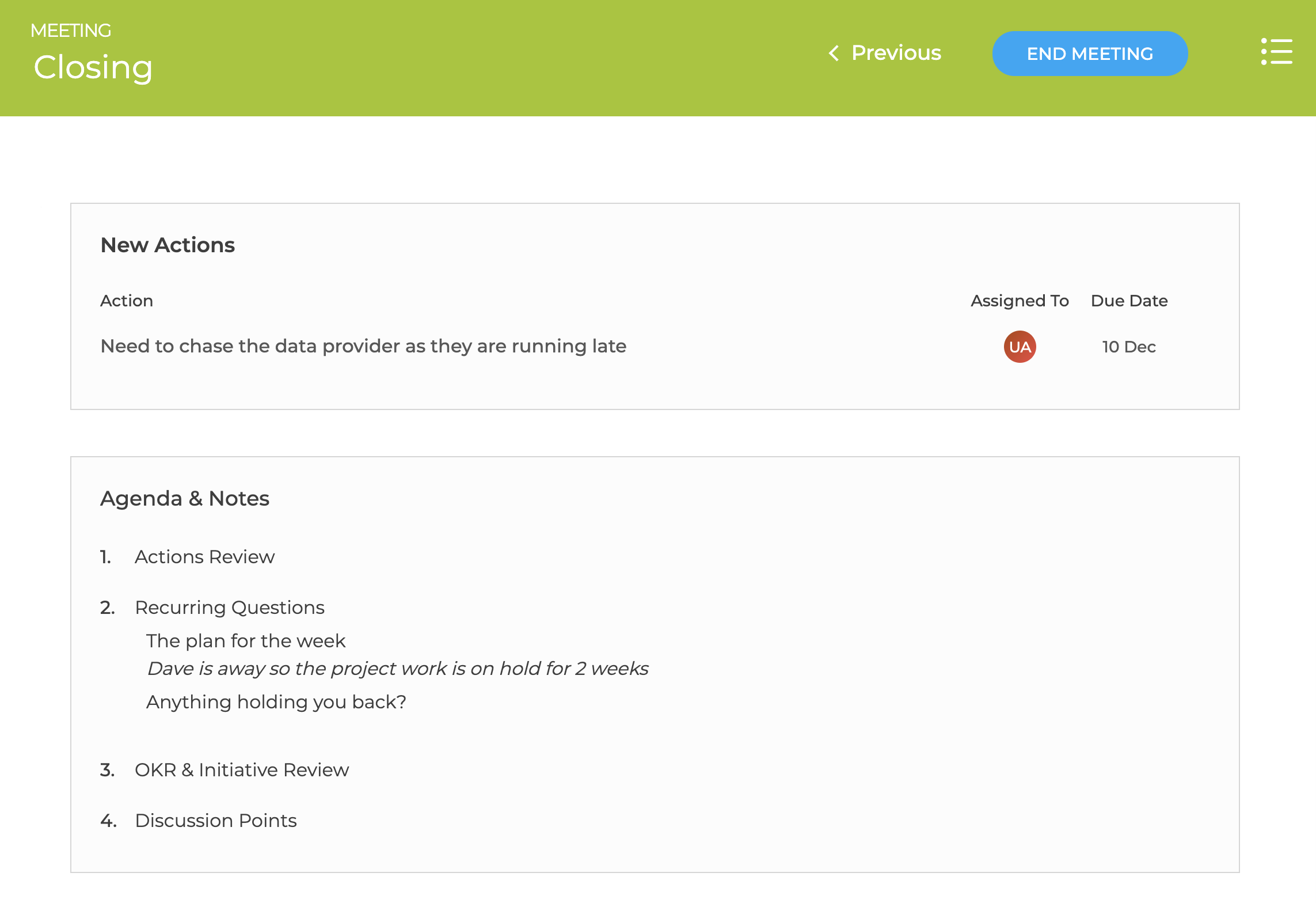
The final screen shows the actions that have been created and notes taken during the meeting
Post Meeting
After ending the meeting a post-meeting email is sent to all participants including those who did not attend. If it was enabled the ROTI survey is sent to those who did attend the meeting to get their feedback.
The output of the meeting is always available using the Completed filter in the Meetings page.