If you use Trello, Asana, JIRA, Monday, Todoist, Hive or Azure DevOps as your Task Management System, you can connect ZOKRI to automatically show the work being done without having to duplicate any tracking:
- You can pick Tasks as your Priorities for the week.
- You can create Key Results and setup To-dos that track progress based on the completion of Tasks and this can be done at Board, Project, Epic, or specific Tasks. So the Key Result / To-do progress is automatically updated as you complete the tasks.
Depending on which system you use & how it is setup there are different ways to configure the Key Results / To-dos
- Measuring progress based on the number or percentage of Tasks being completed
- If you use Kanban style boards, you can map multiple Lists to Completed state
Getting Started
Go to the Connectors page and click on the Add Trello / Asana / JIRA / Todoist Monday card
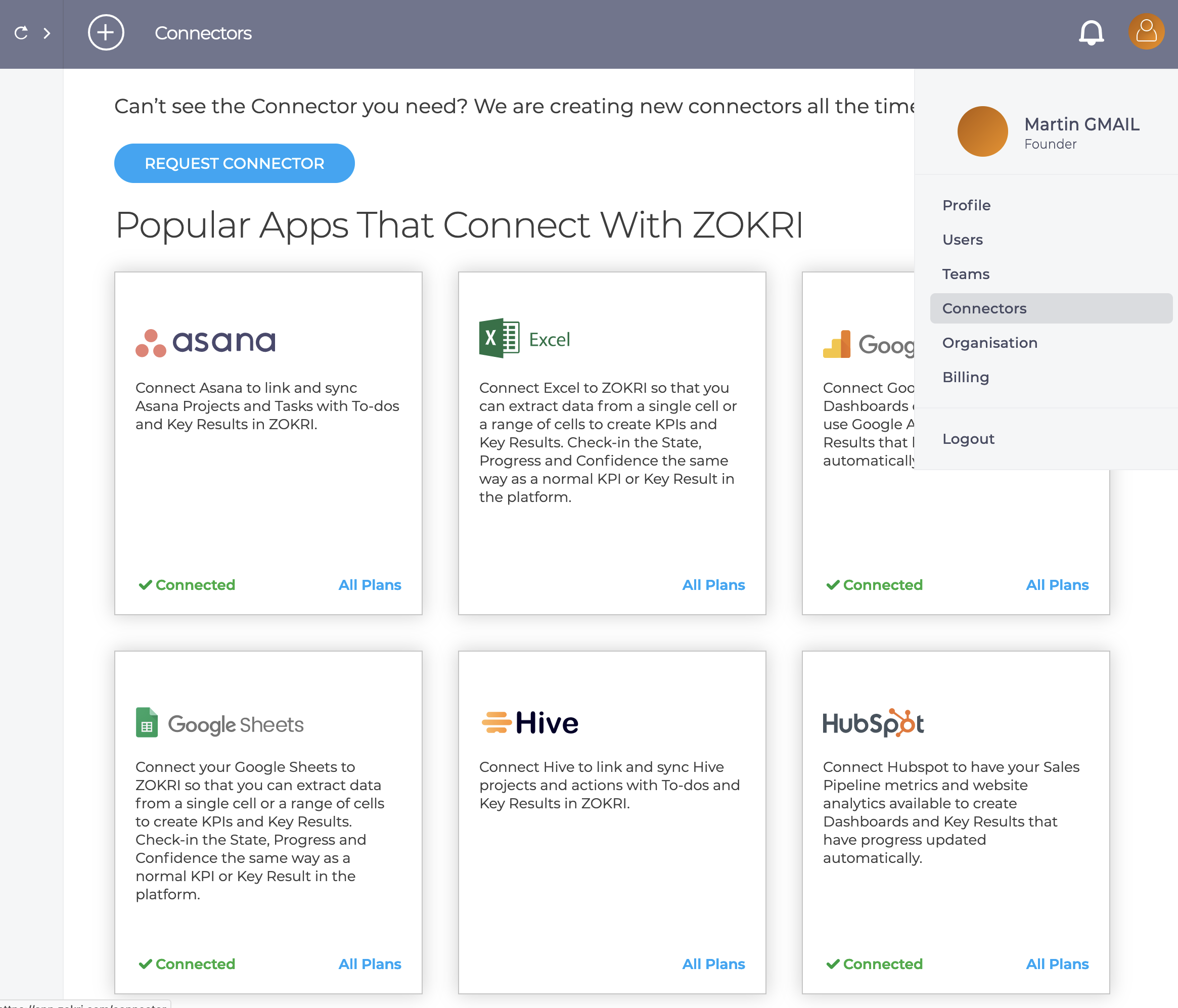
Then click Connect button in the top right

For Trello, Asana, JIRA, Todoist & Azure DevOps you will be redirected to to authorise access and then will have a few screens to do the initial configuration. For Monday setup see Connecting to Monday and for Hive see Connecting to Hive.
Trello
For Trello you will
- Select the Board
- Select how cards are marked as completed and the options are
- Being moved to a Completed list
- Having a Due Date which is marked as Completed
- Select which Lists are Completed Lists
- Name the Connector
Asana
For Asana you will
- Select the Workspace
- Select the Project
- Name the Connector
JIRA
For JIRA you will
- Select the Domain (if you have access to more than one)
- Select the Project
- Select which Lists are Completed Lists
- Name the Connector
Todoist
For Todoist you will
- Select the Project
- Name the Connector
Azure DevOps
For Azure DevOps you will
- Select the Account
- Select the Board
- Name the Connector
Monday
Hive
Top Tips
- If you want to connect multiple Boards / Projects then you need to create a new connector for each one
- If you use Kanban style completed lists in Asana, you can set them up using the State Mapping below
Once you have successfully created the Connector it will appear in the project list
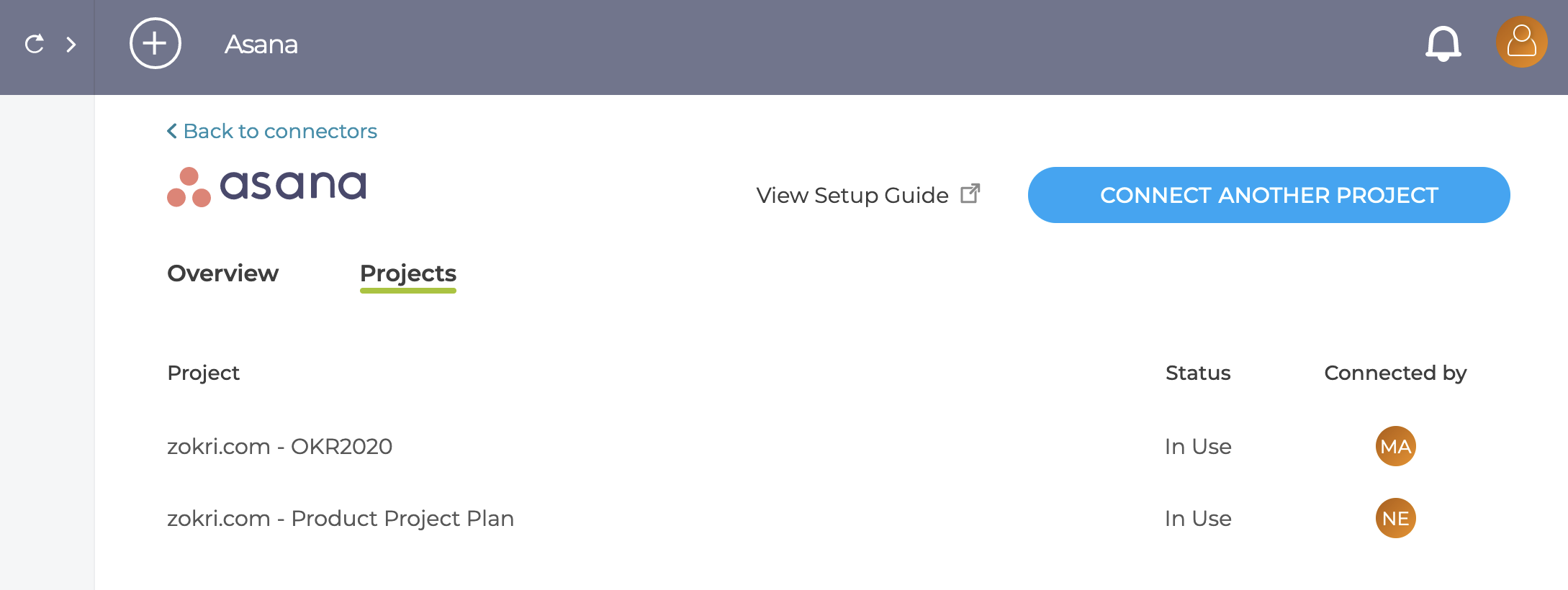
State Mapping
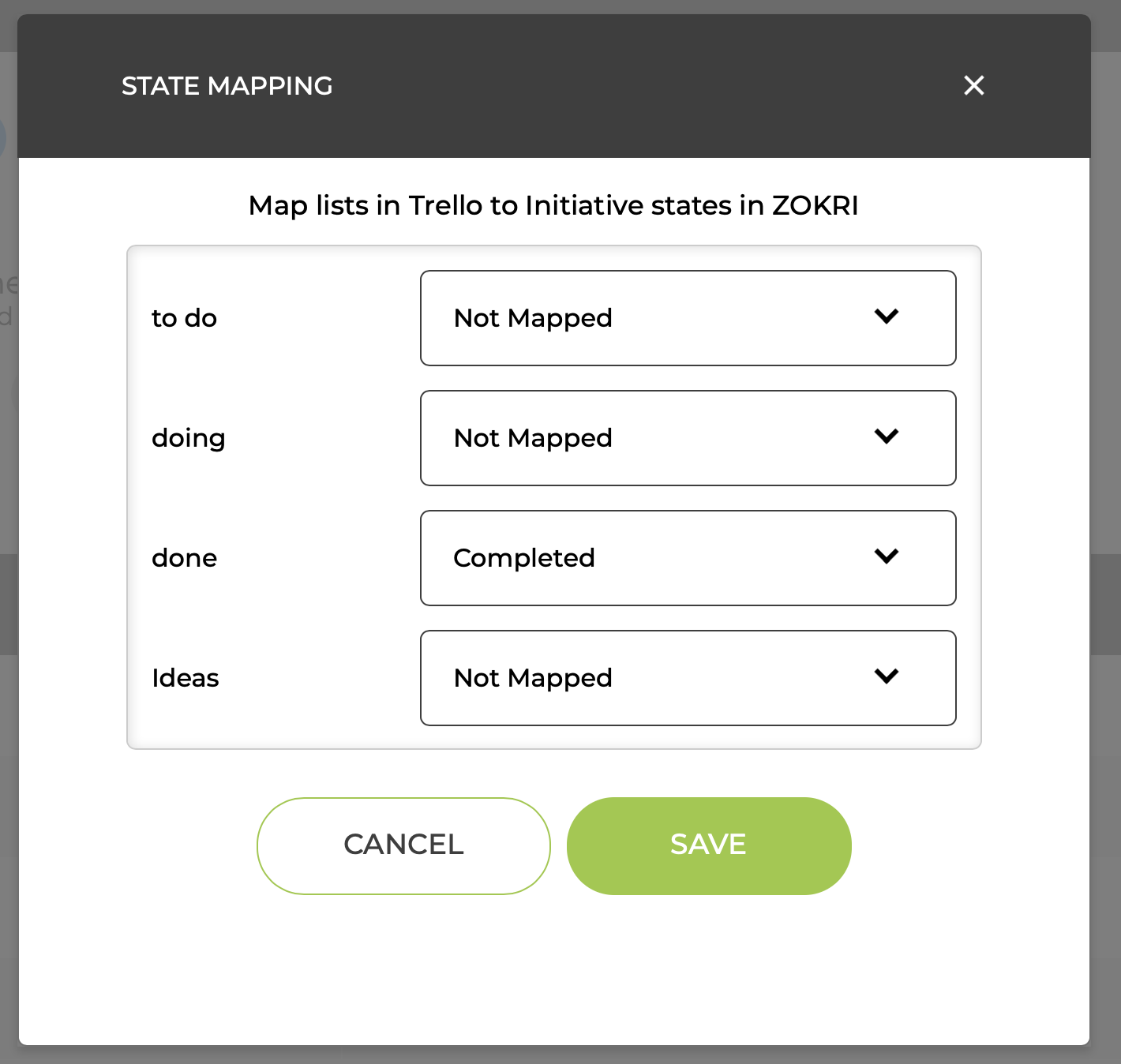
From the menu in the project list above, select State Mapping and you will be able to map the Lists / Sections in to States in ZOKRI. If you added some Completed Lists in the original setup these will already be shown. You can map more than one List / Section to a State.
Currently only the Completed state is used, so any other mapping will be ignored
Key Results / To-dos based on Tasks
You can now setup To-do Progress & Key Results based on completing Tasks - see